GSM BYPASS – If iPhone 16 Pro Max does not have a MEID number usually can fully unlock your iPhone 16 Pro Max as if it never had an iCloud lock.
MEID BYPASS – iPhone 16 Pro Max with MEID number can only bypass iCloud lock but will never get GSM signal and can’t Call/SMS from it. Work only services that work by WiFi network.
MDM BYPASS – APPLE iPhone 16 Pro Max with corporation lock can be unlocked by this software.
CARRIER BYPASS – Carrier Activation Lock does the same like GSM service operation but support MEID number APPLE iPhone 16 Pro Max.
iPhone 16 Pro Max MDM Bypass
Necessary Tools and Drivers
WiFi Network with internet access.
Apple Lightning cable.
APPLE iPhone 16 Pro Max with MDM lock.
MDM_bypass_tool_ikey installed on a computer with Windows OS.
MDM bypass authorization on the iKey server for GSM device
MDM bypass authorization on the iKey server for Wi-Fi device
WARNING! MDM bypass process in your iOS / iPadOS device can erase all of your data. All described operations you are doing at your own risk. If you want to save your data do a backup before starting. The battery should be at least 50% charged before the start.
Tool Installation
1> DOWNLOAD THE TOOL GOT TO SYSTEM PREFERENCES 2> SECURITY & PRIVACY CLICK OPEN ANYWAY OK OK INSTALL FINISH 3> Restore/Flash your device to latest iOS and Jailbreak with CheckRa1n
All Bypass Service Work Till Jailbreak Support On IOS. Once Jailbreak Stop To Support On IOS. All Bypass Service Will Also Stop. So We Will Suggest You – Better Don’t Update IOS & Don’t Use Reset Setting Option In Your Device.
Permanent iCloud Activation lock removal on apple iPhone 11 running on iOS 15.5 which is the latest iOS version from Apple. Works on iPhone X, iPhone XS, iPhone XS Max, iPhone XR, iPhone 7, iPhone 7+, iPhone 6, iPhone 6+, iPhone 6S, iPhone 6S+, iPhone 5S, iPhone 5, iPhone 5C, iPhone 8, iPhone 8 Plus, iPhone 10, iPhone 10 Max, iPhone XR, iPhone SE 3 2022, iPhone 4S and iPhone 4 iPhone 11 iPhone 11 Pro 11 pro max iPhone 13, 13 Pro, 13 Pro Max, 13 Mini. Helps remove activation lock from apple iPhones. You can remove iCloud lock from iPads, iPhone , iPod. Comes with network fix and camera fix. Works on iOS 12, iOS 13, iOS 11, iOS 10, iOS 9, iOS 8 and iOS 7 as well. and iOS 11. Works on iOS 13.3 ios 12.1.1, 12.2.4. New latest cfw iCloud unlock method 2026. Using custom ipsw/ For users on iOS 15.5, a “perfect update” would prioritize stability, security, and a seamless experience. While iOS 15.5 itself is an older version, the desire for a smooth, reliable operating system remains constant.
iCloud Activation Lock Removal Tool.
The CheckM8 is the perfect solution for those in search of a straightforward and powerful tool that can remove Activation Lock from iCloud locked iPhone or iPad. With just one click, this tool can unlock your device and bypass the Activation Lock without any complications.
The CheckM8 tool enables the removal of Activation Lock on iPhones ranging from iPhone 5S to iPhone 16 Pro Max, including both GSM and CDMA (MEID) versions. It’s one tool for the entire range of device models!
Key benefits of updating to iOS 15.5 (if you’re on an even older version of iOS 15, which is unlikely now):
Bug Fixes and Stability: The update resolved several known issues, such as a bug that could cause home automations triggered by people leaving or arriving to fail. These fixes contribute to a more reliable and consistent user experience.
Minor Feature Improvements: While not a major feature release, iOS 15.5 did bring some refinements. These included updates to Apple Cash, making it easier to send and request money directly from the Wallet app, and a new setting in Apple Podcasts to limit stored episodes and automatically delete older ones, helping manage storage. Universal Control, which allows using one mouse/keyboard across multiple iPads and Macs, also exited beta in iPadOS 15.5.
What makes it a “perfect update” for someone on 15.5?
Since iOS 15.5 is not the latest version of iOS, the concept of a “perfect update” for it now really means ensuring your device is running optimally on that version. This involves:
Maintaining good performance: While iOS updates can sometimes impact older devices, iOS 15.5 was generally seen as stable. If you’re currently on it and satisfied with performance, there’s no inherent need to upgrade beyond it if you prefer to stay on that specific iOS branch.
Avoiding unnecessary issues: For many, a “perfect update” is one that doesn’t introduce new problems. If your current iOS 15.5 setup is working flawlessly, that’s already a significant win.
Considering future updates: Be aware that staying on an older iOS version means you’ll eventually miss out on new features, app compatibility, and the latest security patches. However, if your needs are met and performance is solid, iOS 15.5 can continue to be a perfectly functional OS for a time.
Enhanced Security: iOS 15.5 included over 25 security fixes, addressing various vulnerabilities in areas like WebKit, the kernel, and Wi-Fi. Staying updated is crucial for protecting your device and data from potential exploits. If you’ve ordered a license for an iPhone XR, XS, XS Max, or up to the 16 Pro Max, please note that it may take 1 to 7 business days to process your order. However, most orders are typically delivered within 12 to 72 hours. Once your order is complete, you can proceed to use the software.
Most orders are completed the next day after noon UTC +0, but there may be delays on Sundays and some holidays.
We will send you an email when your order is complete. You can also check the status online or by reconnecting your device to the software, which will show a completion status notification.
The iCloud Bypass refers to a procedure that allows users to skip the Activation Lock on their iPhone or iPad. In essence, the bypass enables the device to bypass the activation step and recognize that it has already been activated.
As a result, once you utilize the bypass to skip the Activation Lock, the device ought to function normally without any complications, except if you restore it to its factory settings.
If you employ the CheckM8 Activation Lock Bypass service, you have the benefit of reusing the software for free to bypass the Activation Lock on your iPhone or iPad anytime you require it again!
The CheckM8 is the perfect solution for those in search of a straightforward and powerful tool that can remove Activation Lock from iCloud locked iPhone or iPad. With just one click, this tool can unlock your device and bypass the Activation Lock without any complications. Why Should You Jailbreak Your iOS 18.3 Device? Jailbreaking your iOS 18.3 device opens up a whole new world of possibilities. Here are the key benefits of jailbreaking:
Custom Themes: Customize the look and feel of your device with new themes and UI tweaks.
Install Unavailable Apps: Access apps and tweaks that Apple doesn’t allow on the App Store.
System Tweaks: Change default settings, hide stock apps, disable Siri, or add advanced security features.
Improve Performance: Many jailbreak tweaks optimize your device’s speed, battery life, and overall performance.
Risks of Jailbreaking iOS 18.3
While jailbreaking offers many advantages, there are some risks involved that you need to be aware of:
Inability to Update: You may not be able to install official iOS updates without losing the jailbreak.
Voiding Warranty: Jailbreaking your device will void your Apple warranty, meaning Apple will no longer provide support.
Security Risks: Jailbroken devices are more vulnerable to malware, data breaches, and other security threats.
Stability Issues: Jailbreaking may cause apps to crash, and system stability may be affected.
Bypass iCloud on iPhone XR/XS/XS Max to 16 Pro Max Models:
If you want to bypass iCloud on your A12+ iPhone, from the iPhone XR/XS/XS Max to the iPhone 16 Pro Max, you’re in the right place. The ordering process has been made more user-friendly with the new iRemove software update! No jailbreak is required for iPhone and iPad equipment with A12+ Bionic CPUs!
Just connect your iCloud-locked device, and the software will automatically check its compatibility and offer you a software license. The Activation Lock bypass for A12+ models works on iOS 18.5
Currently, for A12+ devices, only the No Signal Bypass option is available. Your device will function fully except for the ability to make outgoing calls via mobile networks.
Devices that were connected and verified before August 20, 2024, are already eligible for Signal Bypass.
No PC Required: Works entirely online, making it convenient for users.
Supports iOS 18.3 / 18.3.1 / iOS 26 Beta: Perfect for jailbreaking the latest iOS versions.
Easy Setup: With step-by-step instructions, Palera1n makes jailbreaking your device a simple task.
Sileo Installation: Allows installation of the Sileo package manager, a great alternative to Cydia.
Palera1n Virtual Jailbreak: Jailbreak Without a PC
For users who prefer not to connect their devices to a computer, Palera1n Virtual Jailbreak is an excellent solution. This tool works directly online, allowing you to jailbreak your device without requiring additional software or cables.
Yes, jailbreaking will void your warranty. Apple may refuse to repair or provide support for jailbroken devices.
Can I still update my iPhone after jailbreaking?
Once your device is jailbroken, you may not be able to update to the latest iOS version without losing the jailbreak. You will need to wait for a new jailbreak for the updated version.
What’s the best jailbreak tool for iOS 18.3?
Some of the best jailbreak tools for iOS 18.3 include Redensa, Palera1n Virtual Jailbreak, Checkra1n Mirror, and Irolyn Repo Extractor. Each tool offers unique features, so choose one based on your needs.
Conclusion
Jailbreaking your iOS 18.3 or iOS 18.3.1 device offers a wealth of customization options and functionality that Apple typically restricts. By choosing the right jailbreak tool, like Redensa or Palera1n, you can unlock a world of new features, tweak your system, and install apps that would otherwise be unavailable.
However, remember to weigh the risks involved, such as voiding your warranty and compromising your device’s security. Always proceed with caution and ensure that you’re using trusted tools to avoid any potential issues.
iCloud Activation Lock Removal and Jailbreak Tool.
iPhone 5S → iPhone X
iOS versions: 12 – 16 Time Delivery: INSTANT Supported on: Mac & Windows
iPhone XR/XS/XS Max → iPhone 15 Pro Max
iOS versions: 17.4 – 18.0.1 – iOS 26 Beta Time Delivery: 12 – 72h Supported on: Mac & Windows PC
iPads from 2013 to 2018 releases
iOS versions: 12 – 18.1 Time Delivery: INSTANT Supported on: Mac & Windows
iPads from 2019 to 2024 releases
iOS versions: 17.4 – 18.0.1 – iOS 26 Beta Time Delivery: 12 – 72h Supported on: Mac & Windows
The software is compatible with macOS 10.11 or later and Windows 8, 10, 11
How to Use iRemove Activation Lock Bypass Tool iPhone XR/XS/XS Max to 16 Pro Max?
The iRemove software is easy to use! Here are the three simple steps to prepare your iPhone or iPad for iCloud Activation screen bypass. The software works on Mac and Windows PC.
Download and Install software. To start bypassing the Activation Lock on your locked device, first, check if your device is compatible. Follow the on-screen tips or refer to our complete guide. If your device is supported, you will be redirected to the checkout page.
📢 Please Note:
🔴 New orders for A12+ iPhones and iPad Wi‑Fi + Cellular models that have not been previously connected and verified by the software are temporarily not accepted for Signal Bypass. You can still place orders for Activation Lock Bypass without signal iPhone XR/XS/XS Max to 16 Pro Max (No Signal Bypass). Your device will function fully except for the ability to make outgoing calls via mobile networks. This makes it the ideal solution for iPads, which don’t rely on cellular calling. 🔴
Devices that were connected and verified before August 20, 2024, are already eligible for Signal Bypass.
Devices that were previously bypassed with Signal can use the re-bypass option to unlock Activation Lock on a new iOS version.
⚠️ Important Update: Re-Bypass for A12+ Devices!
Unfortunately, the re-bypass option for A12+ devices is now paid. This is due to additional processing costs associated with bypassing the iCloud Activation Lock on these models. Please avoid performing a factory reset on your device to prevent needing to pay again for the re-bypass iPhone XR/XS/XS Max to 16 Pro Max.
⚠️ Platform Notice
Currently, the software for A12+ devices is available only for macOS. The Windows version is coming soon — stay tuned for updates!
Make Payment. After your payment is cleared, your IMEI or Serial will be added to the iRemove Tools Database. Please note that the license is provided for one locked device, with the IMEI or Serial Number recorded in the iRemove Database.
We accept different payment methods, including Visa, Mastercard, American Express, Cryptocurrency (USDT, BTC) and Z3X credits. Our service provides a 100% refund guarantee.
Bypass iCloud Activation Lock iPhone XR/XS/XS Max to 16 Pro Max. Reconnect your device and click the Start button. Please wait until your device reboots. The iRemove tool will notify you that the iCloud Activation Lock screen bypass has been completed successfully!
After the Activation Lock bypass is completed on iPhone or iPad, your device will be completely operable. You can use your Apple ID on it, install apps from the App Store, make and receive calls, surf the internet, and have no restrictions.
Jailbreak iOS 18 – iOS 26 is a topic of ongoing development and discussion within the community. Here’s a summary of the current situation:
General State of iOS 18 – iOS 26 Jailbreak
Difficulty: Jailbreaking newer iOS versions, including iOS 18, has become significantly more challenging due to enhanced security measures implemented by Apple.
Limited Support: Most current jailbreaking tools have limited support for iOS 18, especially on newer devices (iPhone 12 and above).
Older Devices: If you have an older device (A8-A11 chips), there’s a higher chance of a jailbreak being available, typically through tools like PaleRa1n. These jailbreaks often rely on hardware-based exploits (like checkm8) that Apple cannot patch with software updates.
Staying on Lower Versions: For those interested in jailbreaking, the common advice is to stay on the lowest possible iOS version, as newer updates often patch the vulnerabilities exploited by jailbreaks.
Beware of Scams: Be very cautious of websites or tools claiming an easy, untethered jailbreak for all iOS 18 devices without a computer, especially if they ask for personal information or payment. Many of these are scams.
Key Tools and Concepts:
PaleRa1n: This is a prominent jailbreak tool that utilizes the checkm8 exploit. It generally supports devices with A8 to A11 chips on various iOS versions, including some iOS 18 versions, though often with caveats (like needing to be compiled from source for the absolute latest). It usually requires a computer to perform the jailbreak.
Untethered, Tethered, Semi-tethered, Semi-untethered: These terms describe How To jailbreak persists after a device reboots:
Untethered: The jailbreak remains active even after a reboot without needing a computer. These are very rare for newer iOS versions.
Tethered: The device needs to be connected to a computer running specific software every time it reboots for the jailbreak to be active.
Semi-tethered: You can reboot normally, but the jailbreak features are disabled until you connect to a computer to re-enable them.
Semi-untethered: You can reboot normally, but you need to run an app on the device itself to re-enable the jailbreak features. This is the most common type for recent jailbreaks.
Package Managers (Sileo, Cydia, Zebra): Once jailbroken, these applications allow you to install tweaks, themes, and other modifications not available through the official App Store.
Important Considerations:
Legality: In many regions, including the US (due to DMCA exemptions), jailbreaking your own device is generally considered legal.
Risks: While legal, jailbreaking can come with risks, including:
Security Vulnerabilities: It can potentially open your device to security risks if you install untrusted tweaks.
Stability Issues: Unofficial modifications can sometimes lead to system instability, crashes, or battery drain.
Warranty Void: Apple does not support jailbroken devices and may void your warranty if they detect it.
Updates: Updating your iOS device to a newer version will almost always remove the jailbreak, and there’s no guarantee that a jailbreak will be available for the new version.
Where to Find Information:
Dedicated Communities: The best places to get up-to-date and accurate information are dedicated jailbreak communities on platforms like Reddit (e.g., r/jailbreak) or specialized forums.
Reputable Sources: Look for information from well-known and established jailbreak developers or news sites.
In conclusion, a full, untethered jailbreak iOS 18 devices is not widely available at this time. The possibility of jailbreaking largely depends on your device model and the specific iOS 18 version you are running. Always proceed with caution and verify information from trusted sources.
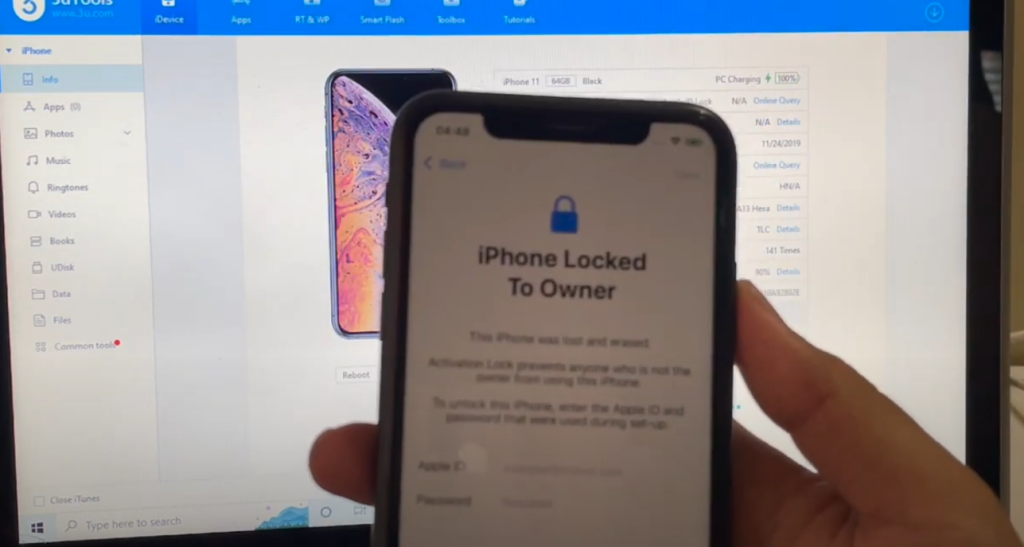
Getting stuck with an iCloud Activation Lock on your iPhone can feel like hitting a wall. Whether you bought a used phone, forgot your Apple ID, or got locked out after an update, seeing “iPhone Locked to Owner” is frustrating. But don’t worry, there are reliable ways to bypass iCloud activation lock for free and get your device working again, even if it’s blacklisted, in lost mode, or saddled with a disabled Apple ID.
In this comprehensive guide, you’ll learn step-by-step how to use tools like 3uTools, download the right IPSW firmware, and flash your iPhone—all without risking jailbreak or your data. Everything explained here is for educational use intended to help you regain access to your own device.
Understanding the iCloud Activation Lock on iPhones
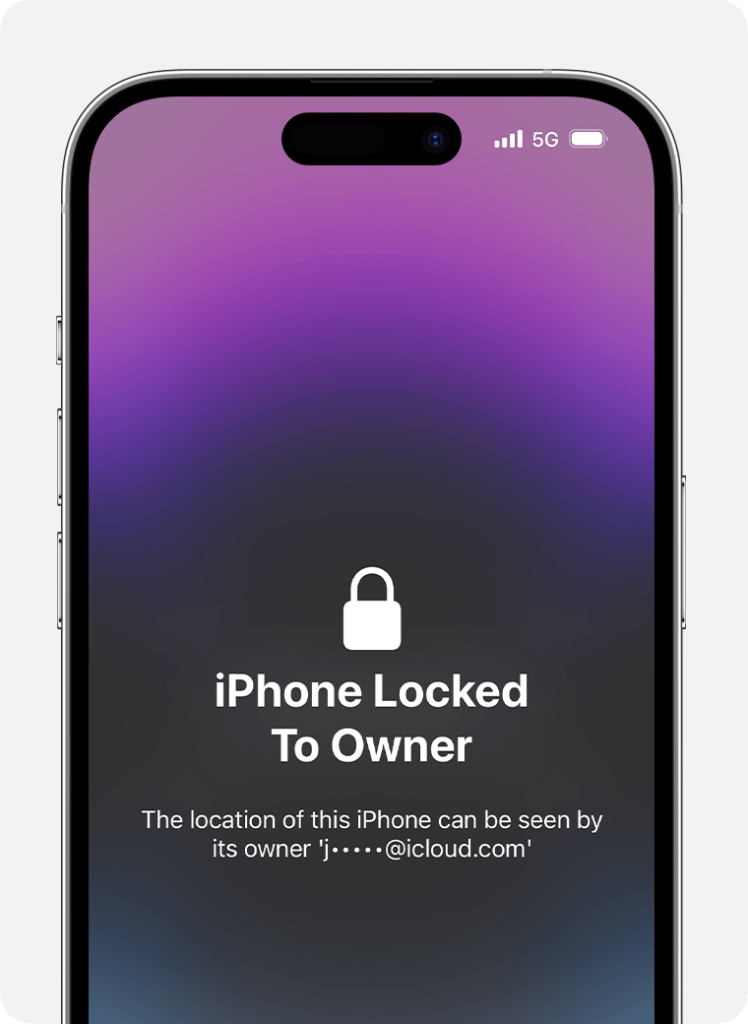
iCloud Activation Lock is a security feature built into iPhones and iPads running iOS 7 and above. When you set up Find My iPhone, your Apple ID links to the device. If you reset or update the phone without logging out of iCloud, or if it’s listed as lost or stolen, you’ll see a message like “iPhone Locked to Owner.” This feature is designed to protect your data and discourage theft.
You might bump into Activation Lock after a factory reset, iOS upgrade, or by buying a second-hand device that still carries the previous owner’s iCloud account. Here are some common lock triggers:
Lost Mode: The owner has marked the iPhone as lost in iCloud.
Stolen Mode: The device is flagged as stolen via Apple’s servers.
Blacklist: Carriers ban devices reported lost or overdue.
Mobile Device Management (MDM) Block: Used by companies to restrict devices.
Screen Passcode Lock: Multiple failed attempts or forgotten passcodes can trigger lockouts.
Key Terms
Lost Mode: Device marked as missing by its rightful owner.
Blacklisted Device: Device flagged by a carrier and blocked from cellular networks.
MDM Block: Restricts access, usually on employer-provided devices.
Common Challenges with iCloud Activation Locked Devices
Unlocking an iCloud-locked iPhone without the owner’s Apple ID is close to impossible by official means. Even when you know your way around, the process brings its share of technical headaches. Some common issues you may see during an iCloud bypass free attempt include:
Getting stuck endlessly on the “Locked to Owner” or activation screen
iTunes freezing or becoming unresponsive when you try to restore or update
Failed verification errors during firmware flashing
The device refusing to upgrade or downgrade iOS
Network errors due to carrier or regional restrictions
Common Problems
iTunes freezer errors
Verification failed during restore
Stuck at Apple ID or activation prompt
Unable to update firmware
These obstacles can discourage users. But with the right method and a few reliable tools, you can regain full access to your iPhone.
Tools and Software Required for Unlocking iCloud Activation Lock
The unlocking solution shown here leans on a handful of free or low-cost tools, most notably:
3uTools: A powerful Windows-based software to manage, flash, and repair iOS devices. Download from the 3uTools official site.
IPSW Firmware Files: Official iOS installation files. Grab yours from trusted sources like ipsw.me or Apple’s site.
iTunes: Essential for connecting and restoring iPhones.
A Data Cable: To physically connect your iPhone to the computer.
Optional VPN: Handy when you hit network region errors, helps set a “matching” IP address for your device origin.
Tip: Always download software and firmware files directly from trusted, official sources to avoid malware or corrupted downloads.
Preparing Your Device for the Unlock Process
Getting your iPhone ready is key for a smooth iCloud bypass free experience. Here’s how to prep:
Check Lock Status: Power on the iPhone. If you see “Locked to Owner,” you need to unlock.
Disconnect/Reconnect Wi-Fi: To verify current network status. You may need to disconnect before starting, then reconnect later.
Remove the SIM Card: This avoids interference from carriers or existing configurations.
Backup Data (If Possible): If you have access before the lock screen, backup your data. The process may wipe everything.
Connect iPhone to PC: Use an original or high-quality USB data cable to avoid connectivity problems.
Precaution: Do Not Disconnect Device During Process—unplugging during flashing can brick your device.
Step 1: Diagnosing the Device Using 3uTools
Plug your iPhone into your PC and launch 3uTools.
On the main dashboard, 3uTools displays your device info: iOS version, model, lock status, and activation info.
Confirm “Activation Lock” is enabled.
The software also checks if your device is blacklisted, lost, or tied to an MDM profile.
If you run into a frozen iTunes window at any point:
Close iTunes using Task Manager (Ctrl + Shift + Esc).
Unplug, then replug your device.
Relaunch iTunes and 3uTools as administrator.
Next, head to 3uTools’ toolbox section:
Use “Delete All Files” to remove any existing or “retaining” files that could interfere with the bypass. This cleans any iCloud account remnants from the phone’s system.
Clearing old data is crucial. Any leftover files or folders can trip up the iCloud bypass and give you fresh error messages.
Hint: If you see progress stuck at a certain percentage, try restarting the tool and clearing redundant files again.
Step 2: Downloading and Importing the Correct IPSW Firmware
An IPSW file is Apple’s official firmware package for iOS devices. It’s needed to “flash” your iPhone during the unlock process. Here’s how to handle firmware:
From 3uTools or sites like ipsw.me, get the latest firmware matching your device and region. Choose exact iOS version for your phone (supports iOS 14, 15, 16, 17, and the latest 18).
In 3uTools, you can either:
Download the IPSW file (longer wait but auto-handled by 3uTools).
Import an already-downloaded IPSW file to save time.
How to Import Firmware:
Go to Flash & JB section in 3uTools.
Click “Import” and choose your IPSW file.
Wait for the tool to verify the firmware.
Warning: Don’t select “Retain User Data.” Doing so may keep the old iCloud info, making the bypass fail. You want a clean slate.
Always prefer official or beta firmware as recommended by your device compatibility. Non-matching firmware can lead to more hassle than help.
Step 3: Flashing the iPhone Firmware to Bypass Activation Lock
With IPSW loaded, you’re set to flash the firmware:
In 3uTools, pick “Quick Flash Mode.” This wipes previous user data and iCloud accounts from the device memory.
Do not select any options to retain user data or fix boot—those can interfere with the process.
Flashing takes from 10 to 15 minutes, depending on device and computer speed. The progress bar may stall at times, sometimes jumping quickly from, say, 68 percent to 100.
As the flash runs:
The device can restart several times—that’s normal.
Do not unplug or interrupt the process. Losing connection mid-flash can soft brick your iPhone and require deeper fixes.
If iTunes freezes or verification errors pop up, try:
Closing and reopening iTunes.
Changing USB ports.
Switching to another user account on your computer.
If you get server errors, switch your network or use a VPN to simulate the IP address of the device’s origin region.
Essential Precautions During Flashing
Don’t unplug your iPhone!
Keep your internet connection stable—loss of connection can cause verification failures.
Watch out for unexpected freezes; patience is key.
Step 4: Managing Batch Activation and Setup Escape
Once the firmware flash finishes, your device is ready but not quite “free.” Batch activation finalizes the bypass and lets you set up your iPhone as new.
In 3uTools, open Toolbox.
Wait for “Batch Activation” to become clickable (highlighted).
Click to activate. This command skips all remaining setup blocks, including:
Language selection
Region and Wi-Fi prompts
Face ID/Touch ID and passcode creation
If errors pop up, like repeated activation blocks:
Change your network (Wi-Fi or VPN) to match the device’s original country or region.
Try again after a short pause.
Carefully follow these prompts—missing a step may cause the tool to throw another activation error. Sometimes, deactivation confirmation will be required. Wait 10 seconds upon request, then click confirm. The process may need a couple of attempts depending on network and server status.
Batch Activation Steps
Click Batch Activation when it’s highlighted.
Select escape options for setup screens.
Deactivate when prompted and wait for confirmation.
Resume normal setup when the bypass is successful.
Tip: Use a VPN to mimic the device’s home region if you keep getting activation errors. This helps with server validation on Apple’s side.
Step 5: Confirming Device Unlock Status
When the process ends, your iPhone should skip the iCloud lock screen. You’ll see the usual startup options:
Select your language and country.
Finish setup without prompts for Apple ID or previous owner passwords.
Check device settings for lingering iCloud accounts—none should remain.
Test by reinserting the SIM card; the phone should connect to your network if not blacklisted.
If things lag or your SIM still doesn’t detect, do a basic reboot. In some cases, using 3uTools’ “Zenon reboot” will reset all configurations for you.
Final Confirmation Steps
No more iCloud lock pop-ups
All features—camera, Wi-Fi, calls—should work
You can sign in with your own (new or existing) Apple ID
If you experience delays on certain device models, be patient. The phone may take a little extra time to finish activating.
Fixing Disabled Apple ID Issue After Unlock
Sometimes, Activation Lock comes with a “Disabled Apple ID” message. After bypassing the lock, you may still not be able to log into your Apple ID right away. Here’s what to do:
Attempt Login: Try signing in to your Apple ID in iCloud settings.
Create a New Apple ID: If login fails, you can set up a new Apple ID—ideal for fresh unlocked devices.
Check Device Settings: Ensure the device is not associated with the previous owner’s account.
Setup Without Retaining User Data: A clean flash often resolves most disabled ID issues.
Reset Network Settings: If login fails due to old settings, reset network configurations from General > Reset.
Reference Apple’s support page or your tool’s official FAQ if issues persist.
Handling Common Errors During the Unlock Process
Why does iTunes keep freezing when I connect my iPhone? This is a common glitch during the unlock process. Close and restart iTunes. Unplug and reconnect your device, and make sure only essential software is running.
What if I get an activation error tied to my network? Switch to another Wi-Fi network or use a VPN tool to simulate the device’s home region. Apple’s servers validate the device’s original IP, and mismatched locations can trigger errors.
My iPhone is still stuck at the Activation Lock screen after flashing—what now? Try the batch activation process again. Double-check you’ve selected quick flash and not retained any user data.
How can I troubleshoot other errors?
Always use the correct IPSW version for your device.
Don’t disconnect the device mid-process.
Try another USB port or cable if issues persist.
Reboot your PC and try again.
Follow step-by-step procedures to avoid missing a key step, which is the main cause of new errors.
Important Precautions Before and During the Unlocking Process
Never unplug your iPhone or close 3uTools during flashing or batch activation.
Always have a backup internet connection or VPN ready.
Make sure your model is compatible (iPhone SE, 6, 7, 8, X, XR, 11, 12, 13, 14, 15, 16, and iPads with iCloud lock).
Don’t use “Retain User Data”—do a completely fresh flash to erase all traces of old iCloud settings.
Use the exact firmware version that matches your device.
Follow each step exactly. Missing or skipping steps is the biggest reason for failed unlocks and bricked devices.
Precaution: Be patient and let the tool finish even if it seems stuck. Fast, repeated clicking or disconnecting leads to errors.
Additional Tips: Avoiding Jailbreak for Unlocking
You don’t need to jailbreak your device for this iCloud bypass free method. In fact, jailbreak can complicate matters and potentially void warranties or cause instability.
Unlocking without jailbreak keeps your iPhone functional and safe for future updates.
Jailbreaking creates vulnerabilities and can limit access to some features or apps.
3uTools and IPSW firmware flashing methods work well without any unauthorized modifications.
Tip: Stick with official, tool-based methods for peace of mind and simple recovery if things go wrong.
Frequently Asked Questions
Can I unlock my iPhone without the previous Apple ID? Yes. With this guide, you don’t need the former owner’s Apple ID or password for supported devices.
Will this method erase my data? Yes. Flashing without retaining user data wipes the device clean. If you have access and care about your data, back up first.
Is this iCloud bypass free method safe and legal? Unlocking your own device is safe. Do not use these techniques on stolen or unauthorized devices. Check local laws for full guidance. For more details, read the disclaimer on the video description.
Can this work on blacklisted or lost mode iPhones? Yes, though these phones may remain blocked from some carrier services after bypass.
How long does the process take? Usually between 12 and 20 minutes, depending on device speed and network reliability.
Summary of the Entire Unlocking Process via 3uTools
Unlocking an iCloud-locked iPhone with 3uTools involves a few key stages:
Diagnose device lock status and clear all user data.
Download or import the correct IPSW firmware for your model.
Use 3uTools to flash your device with a clean firmware.
Complete batch activation and skip all setup barriers.
Confirm unlock by checking the absence of iCloud locks and tracking features.
Log in with your own Apple ID and enjoy your fully functional iPhone.
The main things to remember: keep your device connected, use official firmware files, and patiently follow each software prompt. If you run into errors, don’t panic; network tweaks or repeat attempts usually solve the problem. Your iPhone should be fully usable, free from “Locked to Owner” and Apple ID block screens. Still confused or stuck? Jump to the video comments or this blog’s comment section for help from fellow users and experts.
Where to Get the Tools and Additional Resources
Ready to start your iCloud bypass free process? Here are direct links to the tools and firmware resources used in this guide:
Always use safe, official channels for downloads and stick to methods proven by experts and the iPhone community.
If you found this guide helpful, please drop a comment below the video or on this post. For educational and ownership recovery only—use responsibly and share your experience to help others facing the same challenge.