
Getting stuck with an iCloud Activation Lock on your iPhone can feel like hitting a wall. Whether you bought a used phone, forgot your Apple ID, or got locked out after an update, seeing “iPhone Locked to Owner” is frustrating. But don’t worry, there are reliable ways to bypass iCloud activation lock for free and get your device working again, even if it’s blacklisted, in lost mode, or saddled with a disabled Apple ID.
In this comprehensive guide, you’ll learn step-by-step how to use tools like 3uTools, download the right IPSW firmware, and flash your iPhone—all without risking jailbreak or your data. Everything explained here is for educational use intended to help you regain access to your own device.
Understanding the iCloud Activation Lock on iPhones
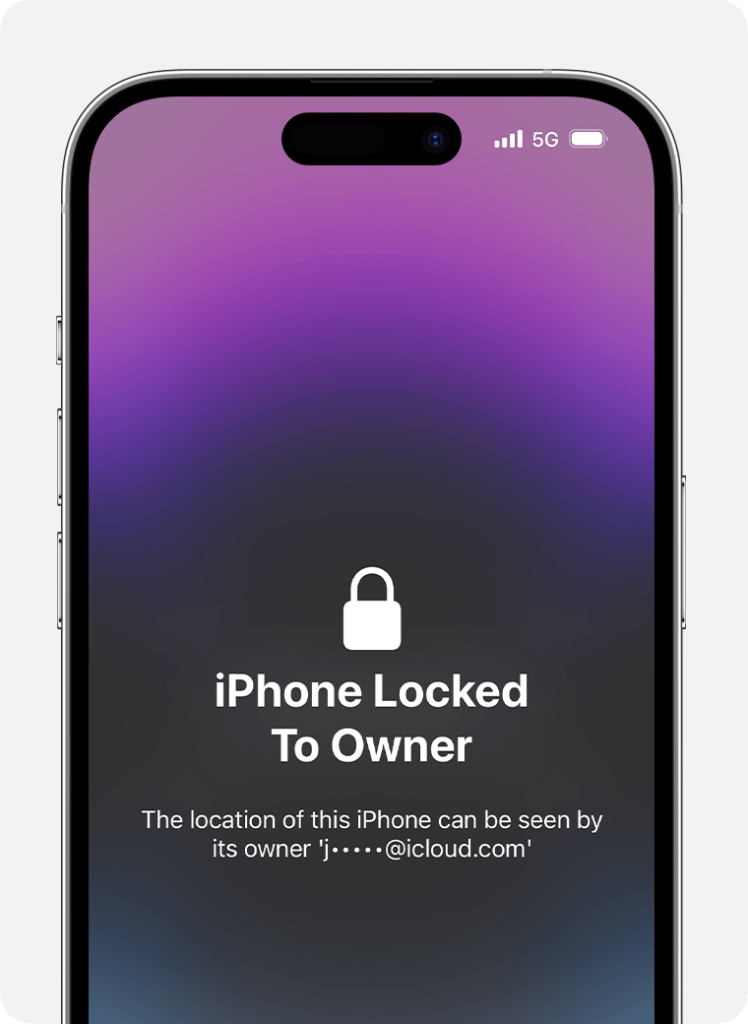
iCloud Activation Lock is a security feature built into iPhones and iPads running iOS 7 and above. When you set up Find My iPhone, your Apple ID links to the device. If you reset or update the phone without logging out of iCloud, or if it’s listed as lost or stolen, you’ll see a message like “iPhone Locked to Owner.” This feature is designed to protect your data and discourage theft.
You might bump into Activation Lock after a factory reset, iOS upgrade, or by buying a second-hand device that still carries the previous owner’s iCloud account. Here are some common lock triggers:
- Lost Mode: The owner has marked the iPhone as lost in iCloud.
- Stolen Mode: The device is flagged as stolen via Apple’s servers.
- Blacklist: Carriers ban devices reported lost or overdue.
- Mobile Device Management (MDM) Block: Used by companies to restrict devices.
- Screen Passcode Lock: Multiple failed attempts or forgotten passcodes can trigger lockouts.
Key Terms
- Lost Mode: Device marked as missing by its rightful owner.
- Blacklisted Device: Device flagged by a carrier and blocked from cellular networks.
- MDM Block: Restricts access, usually on employer-provided devices.
Common Challenges with iCloud Activation Locked Devices
Unlocking an iCloud-locked iPhone without the owner’s Apple ID is close to impossible by official means. Even when you know your way around, the process brings its share of technical headaches. Some common issues you may see during an iCloud bypass free attempt include:
- Getting stuck endlessly on the “Locked to Owner” or activation screen
- iTunes freezing or becoming unresponsive when you try to restore or update
- Failed verification errors during firmware flashing
- The device refusing to upgrade or downgrade iOS
- Network errors due to carrier or regional restrictions
Common Problems
- iTunes freezer errors
- Verification failed during restore
- Stuck at Apple ID or activation prompt
- Unable to update firmware
These obstacles can discourage users. But with the right method and a few reliable tools, you can regain full access to your iPhone.
Tools and Software Required for Unlocking iCloud Activation Lock
The unlocking solution shown here leans on a handful of free or low-cost tools, most notably:
- 3uTools: A powerful Windows-based software to manage, flash, and repair iOS devices. Download from the 3uTools official site.
- IPSW Firmware Files: Official iOS installation files. Grab yours from trusted sources like ipsw.me or Apple’s site.
- iTunes: Essential for connecting and restoring iPhones.
- A Data Cable: To physically connect your iPhone to the computer.
- Optional VPN: Handy when you hit network region errors, helps set a “matching” IP address for your device origin.
Tip: Always download software and firmware files directly from trusted, official sources to avoid malware or corrupted downloads.
Preparing Your Device for the Unlock Process
Getting your iPhone ready is key for a smooth iCloud bypass free experience. Here’s how to prep:
- Check Lock Status: Power on the iPhone. If you see “Locked to Owner,” you need to unlock.
- Disconnect/Reconnect Wi-Fi: To verify current network status. You may need to disconnect before starting, then reconnect later.
- Remove the SIM Card: This avoids interference from carriers or existing configurations.
- Backup Data (If Possible): If you have access before the lock screen, backup your data. The process may wipe everything.
- Connect iPhone to PC: Use an original or high-quality USB data cable to avoid connectivity problems.
Precaution:
Do Not Disconnect Device During Process—unplugging during flashing can brick your device.
Step 1: Diagnosing the Device Using 3uTools
Plug your iPhone into your PC and launch 3uTools.
- On the main dashboard, 3uTools displays your device info: iOS version, model, lock status, and activation info.
- Confirm “Activation Lock” is enabled.
- The software also checks if your device is blacklisted, lost, or tied to an MDM profile.
If you run into a frozen iTunes window at any point:
- Close iTunes using Task Manager (Ctrl + Shift + Esc).
- Unplug, then replug your device.
- Relaunch iTunes and 3uTools as administrator.
Next, head to 3uTools’ toolbox section:
- Use “Delete All Files” to remove any existing or “retaining” files that could interfere with the bypass. This cleans any iCloud account remnants from the phone’s system.
Clearing old data is crucial. Any leftover files or folders can trip up the iCloud bypass and give you fresh error messages.
Hint: If you see progress stuck at a certain percentage, try restarting the tool and clearing redundant files again.
Step 2: Downloading and Importing the Correct IPSW Firmware
An IPSW file is Apple’s official firmware package for iOS devices. It’s needed to “flash” your iPhone during the unlock process. Here’s how to handle firmware:
- From 3uTools or sites like ipsw.me, get the latest firmware matching your device and region. Choose exact iOS version for your phone (supports iOS 14, 15, 16, 17, and the latest 18).
- In 3uTools, you can either:
- Download the IPSW file (longer wait but auto-handled by 3uTools).
- Import an already-downloaded IPSW file to save time.
How to Import Firmware:
- Go to Flash & JB section in 3uTools.
- Click “Import” and choose your IPSW file.
- Wait for the tool to verify the firmware.
Warning: Don’t select “Retain User Data.” Doing so may keep the old iCloud info, making the bypass fail. You want a clean slate.
Always prefer official or beta firmware as recommended by your device compatibility. Non-matching firmware can lead to more hassle than help.
Step 3: Flashing the iPhone Firmware to Bypass Activation Lock
With IPSW loaded, you’re set to flash the firmware:
- In 3uTools, pick “Quick Flash Mode.” This wipes previous user data and iCloud accounts from the device memory.
- Do not select any options to retain user data or fix boot—those can interfere with the process.
Flashing takes from 10 to 15 minutes, depending on device and computer speed. The progress bar may stall at times, sometimes jumping quickly from, say, 68 percent to 100.
As the flash runs:
- The device can restart several times—that’s normal.
- Do not unplug or interrupt the process. Losing connection mid-flash can soft brick your iPhone and require deeper fixes.
- If iTunes freezes or verification errors pop up, try:
- Closing and reopening iTunes.
- Changing USB ports.
- Switching to another user account on your computer.
- If you get server errors, switch your network or use a VPN to simulate the IP address of the device’s origin region.
Essential Precautions During Flashing
- Don’t unplug your iPhone!
- Keep your internet connection stable—loss of connection can cause verification failures.
- Watch out for unexpected freezes; patience is key.
Step 4: Managing Batch Activation and Setup Escape
Once the firmware flash finishes, your device is ready but not quite “free.” Batch activation finalizes the bypass and lets you set up your iPhone as new.
- In 3uTools, open Toolbox.
- Wait for “Batch Activation” to become clickable (highlighted).
- Click to activate. This command skips all remaining setup blocks, including:
- Language selection
- Region and Wi-Fi prompts
- Face ID/Touch ID and passcode creation
- If errors pop up, like repeated activation blocks:
- Change your network (Wi-Fi or VPN) to match the device’s original country or region.
- Try again after a short pause.
Carefully follow these prompts—missing a step may cause the tool to throw another activation error. Sometimes, deactivation confirmation will be required. Wait 10 seconds upon request, then click confirm. The process may need a couple of attempts depending on network and server status.
Batch Activation Steps
- Click Batch Activation when it’s highlighted.
- Select escape options for setup screens.
- Deactivate when prompted and wait for confirmation.
- Resume normal setup when the bypass is successful.
Tip: Use a VPN to mimic the device’s home region if you keep getting activation errors. This helps with server validation on Apple’s side.
Step 5: Confirming Device Unlock Status
When the process ends, your iPhone should skip the iCloud lock screen. You’ll see the usual startup options:
- Select your language and country.
- Finish setup without prompts for Apple ID or previous owner passwords.
- Check device settings for lingering iCloud accounts—none should remain.
- Test by reinserting the SIM card; the phone should connect to your network if not blacklisted.
- If things lag or your SIM still doesn’t detect, do a basic reboot. In some cases, using 3uTools’ “Zenon reboot” will reset all configurations for you.
Final Confirmation Steps
- No more iCloud lock pop-ups
- All features—camera, Wi-Fi, calls—should work
- You can sign in with your own (new or existing) Apple ID
If you experience delays on certain device models, be patient. The phone may take a little extra time to finish activating.
Fixing Disabled Apple ID Issue After Unlock
Sometimes, Activation Lock comes with a “Disabled Apple ID” message. After bypassing the lock, you may still not be able to log into your Apple ID right away. Here’s what to do:
- Attempt Login: Try signing in to your Apple ID in iCloud settings.
- Create a New Apple ID: If login fails, you can set up a new Apple ID—ideal for fresh unlocked devices.
- Check Device Settings: Ensure the device is not associated with the previous owner’s account.
- Setup Without Retaining User Data: A clean flash often resolves most disabled ID issues.
- Reset Network Settings: If login fails due to old settings, reset network configurations from General > Reset.
Reference Apple’s support page or your tool’s official FAQ if issues persist.
Handling Common Errors During the Unlock Process
Why does iTunes keep freezing when I connect my iPhone?
This is a common glitch during the unlock process. Close and restart iTunes. Unplug and reconnect your device, and make sure only essential software is running.
What if I get an activation error tied to my network?
Switch to another Wi-Fi network or use a VPN tool to simulate the device’s home region. Apple’s servers validate the device’s original IP, and mismatched locations can trigger errors.
My iPhone is still stuck at the Activation Lock screen after flashing—what now?
Try the batch activation process again. Double-check you’ve selected quick flash and not retained any user data.
How can I troubleshoot other errors?
- Always use the correct IPSW version for your device.
- Don’t disconnect the device mid-process.
- Try another USB port or cable if issues persist.
- Reboot your PC and try again.
Follow step-by-step procedures to avoid missing a key step, which is the main cause of new errors.
Important Precautions Before and During the Unlocking Process
Never unplug your iPhone or close 3uTools during flashing or batch activation.
Always have a backup internet connection or VPN ready.
Make sure your model is compatible (iPhone SE, 6, 7, 8, X, XR, 11, 12, 13, 14, 15, 16, and iPads with iCloud lock).
Don’t use “Retain User Data”—do a completely fresh flash to erase all traces of old iCloud settings.
Use the exact firmware version that matches your device.
Follow each step exactly. Missing or skipping steps is the biggest reason for failed unlocks and bricked devices.
Precaution: Be patient and let the tool finish even if it seems stuck. Fast, repeated clicking or disconnecting leads to errors.
Additional Tips: Avoiding Jailbreak for Unlocking
You don’t need to jailbreak your device for this iCloud bypass free method. In fact, jailbreak can complicate matters and potentially void warranties or cause instability.
- Unlocking without jailbreak keeps your iPhone functional and safe for future updates.
- Jailbreaking creates vulnerabilities and can limit access to some features or apps.
- 3uTools and IPSW firmware flashing methods work well without any unauthorized modifications.
Tip: Stick with official, tool-based methods for peace of mind and simple recovery if things go wrong.
Frequently Asked Questions
Can I unlock my iPhone without the previous Apple ID?
Yes. With this guide, you don’t need the former owner’s Apple ID or password for supported devices.
Will this method erase my data?
Yes. Flashing without retaining user data wipes the device clean. If you have access and care about your data, back up first.
Is this iCloud bypass free method safe and legal?
Unlocking your own device is safe. Do not use these techniques on stolen or unauthorized devices. Check local laws for full guidance. For more details, read the disclaimer on the video description.
Can this work on blacklisted or lost mode iPhones?
Yes, though these phones may remain blocked from some carrier services after bypass.
How long does the process take?
Usually between 12 and 20 minutes, depending on device speed and network reliability.
Summary of the Entire Unlocking Process via 3uTools
Unlocking an iCloud-locked iPhone with 3uTools involves a few key stages:
- Diagnose device lock status and clear all user data.
- Download or import the correct IPSW firmware for your model.
- Use 3uTools to flash your device with a clean firmware.
- Complete batch activation and skip all setup barriers.
- Confirm unlock by checking the absence of iCloud locks and tracking features.
- Log in with your own Apple ID and enjoy your fully functional iPhone.
The main things to remember: keep your device connected, use official firmware files, and patiently follow each software prompt. If you run into errors, don’t panic; network tweaks or repeat attempts usually solve the problem. Your iPhone should be fully usable, free from “Locked to Owner” and Apple ID block screens. Still confused or stuck? Jump to the video comments or this blog’s comment section for help from fellow users and experts.
Where to Get the Tools and Additional Resources
Ready to start your iCloud bypass free process? Here are direct links to the tools and firmware resources used in this guide:
- Download 3uTools – all-in-one iOS management tool
- Access MagFone Activation Unlocker – recommended unlock solution
- Get iOS firmware IPSW files from ipsw.me – official IPSW downloads for iPhone
Always use safe, official channels for downloads and stick to methods proven by experts and the iPhone community.
If you found this guide helpful, please drop a comment below the video or on this post. For educational and ownership recovery only—use responsibly and share your experience to help others facing the same challenge.